











Save annotated Feedly articles to OneNote and get a Pushover alert
2 ready-made OneNote and Pushover Applets
Turn one on, or build your own with no code.

Automate OneNote and Pushover from your AI assistant
Ask OpenClaw to create OneNote pages for you, right from your AI assistant, with IFTTT MCP.
Set up IFTTT MCP


Create your own OneNote and Pushover workflow
Create custom workflows effortlessly by selecting triggers, queries, and actions. With IFTTT, it's simple: “If this” trigger happens, “then that” action follows. Streamline tasks and save time with automated workflows that work for you.
5 triggers, queries, and actions
Create a page

Action
An action is the task your Applet carries out after the trigger occurs. It defines what happens as the result of your automation and completes the workflow.
This Action will create a new page in the specified section of the specified notebook.
Create a page from a link
Action
An action is the task your Applet carries out after the trigger occurs. It defines what happens as the result of your automation and completes the workflow.
This Action creates a page from a link in the specified section of the specified notebook.
Create a page with an image
Action
An action is the task your Applet carries out after the trigger occurs. It defines what happens as the result of your automation and completes the workflow.
This Action will create a new page with an image in the specified section of the specified notebook.
Send a Pushover notification
Action
An action is the task your Applet carries out after the trigger occurs. It defines what happens as the result of your automation and completes the workflow.
This Action will generate a Pushover notification to your subscribed devices
Update a Pushover widget
Action
An action is the task your Applet carries out after the trigger occurs. It defines what happens as the result of your automation and completes the workflow.
This action will update your Pushover widget/watch with new glance data.
Create a page
Action
An action is the task your Applet carries out after the trigger occurs. It defines what happens as the result of your automation and completes the workflow.
This Action will create a new page in the specified section of the specified notebook.
Create a page from a link
Action
An action is the task your Applet carries out after the trigger occurs. It defines what happens as the result of your automation and completes the workflow.
This Action creates a page from a link in the specified section of the specified notebook.
Create a page with an image
Action
An action is the task your Applet carries out after the trigger occurs. It defines what happens as the result of your automation and completes the workflow.
This Action will create a new page with an image in the specified section of the specified notebook.
Send a Pushover notification
Action
An action is the task your Applet carries out after the trigger occurs. It defines what happens as the result of your automation and completes the workflow.
This Action will generate a Pushover notification to your subscribed devices
Update a Pushover widget
Action
An action is the task your Applet carries out after the trigger occurs. It defines what happens as the result of your automation and completes the workflow.
This action will update your Pushover widget/watch with new glance data.
GET STARTED
How to connect to a OneNote automation
Find an Applet using OneNote and Pushover
Find an automation to connect to, or create your own!Connect IFTTT to your accounts
Securely connect the Applet services to your respective accounts.Finalize and customize your Applet
Review trigger and action settings, and click connect. Simple as that!Make more happen with your credits
-

More credits, more possibilities
Get more credits per month to power more automation activity. -
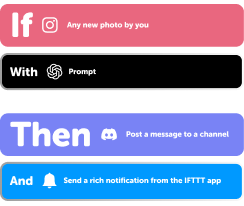
Power more advanced automations
Use credits to power your automations, including actions that require more processing. -
Access faster speeds and higher rate limits
Get faster updates and more actions with increased rate limits and more frequent checks.
OneNote and Pushover tips, tools, and resources


More on OneNote and Pushover
About OneNote
OneNote and IFTTT let you automatically capture web links, images, and notes into your digital notebook.
About Pushover
Pushover and IFTTT let you send notifications to your phone, tablet, or desktop whenever something happens.