









Set Nest cool temperature when it gets cold outside
Other popular Google Nest Thermostat workflows and automations
-
 1
1
-
-
Change Philips Hue color when Nest temperature exceeds 72°
3
-
-
Get a notification when your Nest Thermostat temperature drops below a set level
1
-
-
Turn off Google Nest Thermostat with button press
8
-
-
Email me when Nest temperature rises above a set threshold
1
-
-
Turn on GE Appliances Window AC when Nest temperature rises above threshold
1
-
-
Send a notification when Nest temperature rises above a threshold
3
-
-
Turn on Google Nest fan when humidity rises above threshold
1
-
-
Log high Nest temperature readings to Google Sheets
3
-








Automate Google Nest Thermostat and Honeywell Total Connect Comfort from your AI assistant
Tell OpenClaw to create Nest Thermostat applets and control your temperature right from your AI assistant with IFTTT MCP.
Set up IFTTT MCP


Create your own Google Nest Thermostat and Honeywell Total Connect Comfort workflow
Create custom workflows effortlessly by selecting triggers, queries, and actions. With IFTTT, it's simple: “If this” trigger happens, “then that” action follows. Streamline tasks and save time with automated workflows that work for you.
17 triggers, queries, and actions
Humidity drops below
Polling trigger
Polling Applets run after IFTTT reaches out to the trigger service and finds a new trigger event. These trigger checks occur every hour on Free, every 15 minutes on Starter, and every 5 minutes on Pro and Pro+.
This trigger fires when the humidity drops below a given threshold.
Humidity rises above
Polling trigger
Polling Applets run after IFTTT reaches out to the trigger service and finds a new trigger event. These trigger checks occur every hour on Free, every 15 minutes on Starter, and every 5 minutes on Pro and Pro+.
This trigger fires when the humidity rises above a given threshold.
Temperature drops below
Polling trigger
Polling Applets run after IFTTT reaches out to the trigger service and finds a new trigger event. These trigger checks occur every hour on Free, every 15 minutes on Starter, and every 5 minutes on Pro and Pro+.
This trigger fires when the temperature drops below a given threshold.
Temperature rises above
Polling trigger
Polling Applets run after IFTTT reaches out to the trigger service and finds a new trigger event. These trigger checks occur every hour on Free, every 15 minutes on Starter, and every 5 minutes on Pro and Pro+.
This trigger fires when the temperature rises above a given threshold.
Resume programmed schedule
Action
An action is the task your Applet carries out after the trigger occurs. It defines what happens as the result of your automation and completes the workflow.
This Action will set your Honeywell thermostat to resume the currently defined thermostat programmed schedule.
Set COOL temperature
Action
An action is the task your Applet carries out after the trigger occurs. It defines what happens as the result of your automation and completes the workflow.
This action will set the desired temperature in the COOL mode.
Set fan to on or auto
Action
An action is the task your Applet carries out after the trigger occurs. It defines what happens as the result of your automation and completes the workflow.
This Action will set the Honeywell thermostat fan to On where the fan is always on or Auto where the fan runs only when the heating or cooling system is on.
Set HOT temperature
Action
An action is the task your Applet carries out after the trigger occurs. It defines what happens as the result of your automation and completes the workflow.
This action will set the desired temperature in the HOT mode.
Set temperature for a period of time
Action
An action is the task your Applet carries out after the trigger occurs. It defines what happens as the result of your automation and completes the workflow.
This Action will set your Honeywell thermostat to hold a temperature for a specified period of time. The schedule will resume when the time expires.
Set temperature range
Action
An action is the task your Applet carries out after the trigger occurs. It defines what happens as the result of your automation and completes the workflow.
This action will set the desired temperature HEAT & COOL mode range.
Set temperature to a permanent hold
Action
An action is the task your Applet carries out after the trigger occurs. It defines what happens as the result of your automation and completes the workflow.
This Action will set your Honeywell thermostat to permanently hold the specified temperature until you change it.
Turn off Eco Mode
Action
An action is the task your Applet carries out after the trigger occurs. It defines what happens as the result of your automation and completes the workflow.
This action will turn off your thermostat's Eco Mode. When the Eco mode is turned off, the thermostat mode will default to the last standard mode (HEAT, COOL, HEATCOOL, or OFF) that was active.
Turn off fan
Action
An action is the task your Applet carries out after the trigger occurs. It defines what happens as the result of your automation and completes the workflow.
This action will turn off your thermostat's fan.
Turn on Eco Mode
Action
An action is the task your Applet carries out after the trigger occurs. It defines what happens as the result of your automation and completes the workflow.
This action will turn on your thermostat with Eco Mode.
Turn on fan
Action
An action is the task your Applet carries out after the trigger occurs. It defines what happens as the result of your automation and completes the workflow.
This action will turn on your thermostat's fan for X minutes.
Turn thermostat off
Action
An action is the task your Applet carries out after the trigger occurs. It defines what happens as the result of your automation and completes the workflow.
This action will turn off your thermostat.
Humidity drops below
Polling trigger
Polling Applets run after IFTTT reaches out to the trigger service and finds a new trigger event. These trigger checks occur every hour on Free, every 15 minutes on Starter, and every 5 minutes on Pro and Pro+.
This trigger fires when the humidity drops below a given threshold.
Humidity rises above
Polling trigger
Polling Applets run after IFTTT reaches out to the trigger service and finds a new trigger event. These trigger checks occur every hour on Free, every 15 minutes on Starter, and every 5 minutes on Pro and Pro+.
This trigger fires when the humidity rises above a given threshold.
Resume programmed schedule
Action
An action is the task your Applet carries out after the trigger occurs. It defines what happens as the result of your automation and completes the workflow.
This Action will set your Honeywell thermostat to resume the currently defined thermostat programmed schedule.
Set COOL temperature
Action
An action is the task your Applet carries out after the trigger occurs. It defines what happens as the result of your automation and completes the workflow.
This action will set the desired temperature in the COOL mode.
Set fan to on or auto
Action
An action is the task your Applet carries out after the trigger occurs. It defines what happens as the result of your automation and completes the workflow.
This Action will set the Honeywell thermostat fan to On where the fan is always on or Auto where the fan runs only when the heating or cooling system is on.
Set HOT temperature
Action
An action is the task your Applet carries out after the trigger occurs. It defines what happens as the result of your automation and completes the workflow.
This action will set the desired temperature in the HOT mode.
Set temperature for a period of time
Action
An action is the task your Applet carries out after the trigger occurs. It defines what happens as the result of your automation and completes the workflow.
This Action will set your Honeywell thermostat to hold a temperature for a specified period of time. The schedule will resume when the time expires.
Set temperature range
Action
An action is the task your Applet carries out after the trigger occurs. It defines what happens as the result of your automation and completes the workflow.
This action will set the desired temperature HEAT & COOL mode range.
Set temperature to a permanent hold
Action
An action is the task your Applet carries out after the trigger occurs. It defines what happens as the result of your automation and completes the workflow.
This Action will set your Honeywell thermostat to permanently hold the specified temperature until you change it.
Temperature drops below
Polling trigger
Polling Applets run after IFTTT reaches out to the trigger service and finds a new trigger event. These trigger checks occur every hour on Free, every 15 minutes on Starter, and every 5 minutes on Pro and Pro+.
This trigger fires when the temperature drops below a given threshold.
Temperature rises above
Polling trigger
Polling Applets run after IFTTT reaches out to the trigger service and finds a new trigger event. These trigger checks occur every hour on Free, every 15 minutes on Starter, and every 5 minutes on Pro and Pro+.
This trigger fires when the temperature rises above a given threshold.
Turn off Eco Mode
Action
An action is the task your Applet carries out after the trigger occurs. It defines what happens as the result of your automation and completes the workflow.
This action will turn off your thermostat's Eco Mode. When the Eco mode is turned off, the thermostat mode will default to the last standard mode (HEAT, COOL, HEATCOOL, or OFF) that was active.
Build an automation in seconds!
If

Select a trigger the automation will use
Humidity drops below
Humidity rises above
Temperature drops below
Temperature rises above
Then

Select an action the automation will perform
Resume programmed schedule
Set COOL temperature
Set fan to on or auto
Set HOT temperature
Set temperature for a period of time
Set temperature range
Set temperature to a permanent hold
Turn off Eco Mode
Turn off fan
Turn on Eco Mode
Turn on fan
Turn thermostat off
Turn thermostat on
You can add delays, queries, and more actions in the chat.
GET STARTED
How to connect to a Google Nest Thermostat automation
Find an Applet using Google Nest Thermostat and Honeywell Total Connect Comfort
Find an automation to connect to, or create your own!Connect IFTTT to your accounts
Securely connect the Applet services to your respective accounts.Finalize and customize your Applet
Review trigger and action settings, and click connect. Simple as that!Make more happen with your credits
-
More credits, more possibilities
Get more credits per month to power more automation activity. -

Power more advanced automations
Use credits to power your automations, including actions that require more processing. -
Access faster speeds and higher rate limits
Get faster updates and more actions with increased rate limits and more frequent checks.
Google Nest Thermostat and Honeywell Total Connect Comfort tips, tools, and resources
-
Productivity
10 automation prompts you need to try

-
Lifestyle
Automations for every kind of hobbyist

-
Smart home
IFTTT vs. Google Home Routines: the best smart home automation pair?
-
Smart home
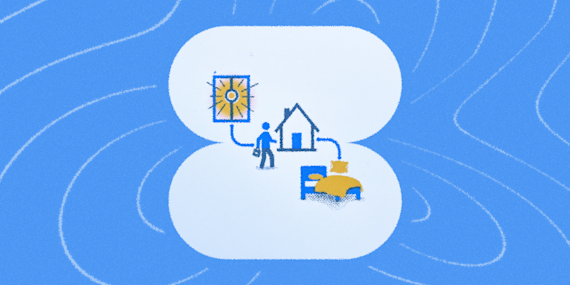
How to get your bedroom ready the moment you get home
-
Smart home
How to build a gentle wake-up routine with smart lights and your thermostat
-
Lifestyle
How to automate your bedtime routine with smart lights, thermostat, and music

-
Smart home
The ultimate Airbnb smart home guide: best devices to automate your rental
-
Productivity
Automations for hosts of every kind
-
Smart home
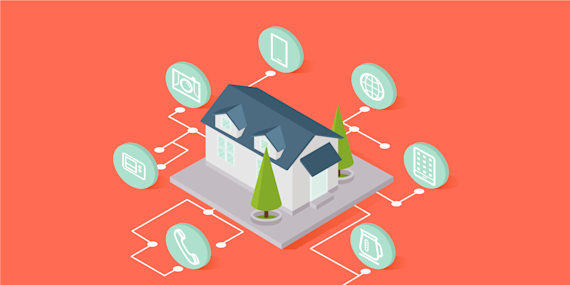
Preventing Airbnb disasters: smart smoke, CO2 & water leak sensors
More on Google Nest Thermostat and Honeywell Total Connect Comfort
About Google Nest Thermostat
Google Nest Thermostat and IFTTT let you automate your heating and cooling based on temperature and humidity, plus control your fan and Eco Mode.
About Honeywell Total Connect Comfort
Honeywell Total Connect Comfort and IFTTT let you automate your thermostat, adjusting temperature and fan settings based on what happens around you.