Explore Plans
Mobile menu Close menu

Times Frame to Button widget integrations

Times Frame and Button widget both work with IFTTT. Button widget can start an automation with "Button press", and IFTTT can then run "Play animation" on Times Frame.
Get started todayGet started today

Automate Times Frame and Button widget from your AI assistant

Ask Copilot to create Times Frame applets that play animations and control your pixel art display with IFTTT MCP.

Set up IFTTT MCP

Create your own Times Frame and Button widget workflow

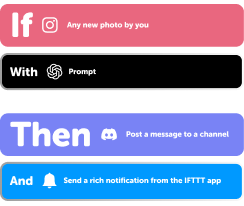
Create custom workflows effortlessly by selecting triggers, queries, and actions. With IFTTT, it's simple: “If this” trigger happens, “then that” action follows. Streamline tasks and save time with automated workflows that work for you.

9 triggers, queries, and actions

Alarm set on

Polling trigger
Polling Applets run after IFTTT reaches out to the trigger service and finds a new trigger event. These trigger checks occur every 5 minutes for Pro and Pro+ users, and every hour for Free users.
This trigger fires when a alarm is started.

Button press

Polling trigger
Polling Applets run after IFTTT reaches out to the trigger service and finds a new trigger event. These trigger checks occur every 5 minutes for Pro and Pro+ users, and every hour for Free users.
This trigger fires every time you press the button.

Countdown meter ended

Polling trigger
Polling Applets run after IFTTT reaches out to the trigger service and finds a new trigger event. These trigger checks occur every 5 minutes for Pro and Pro+ users, and every hour for Free users.
The down clock is finished.

Play animation

Action
An action is the task your Applet carries out after the trigger occurs. It defines what happens as the result of your automation and completes the workflow.
This action will play gif on Times Gate.

Start countdown meter

Action
An action is the task your Applet carries out after the trigger occurs. It defines what happens as the result of your automation and completes the workflow.
This action will start down clock on a TimesGate.

Start stopwatch

Action
An action is the task your Applet carries out after the trigger occurs. It defines what happens as the result of your automation and completes the workflow.
This action will start timer on Times Gate.

Switch clock interface

Action
An action is the task your Applet carries out after the trigger occurs. It defines what happens as the result of your automation and completes the workflow.
This action will choose clock on Times Frame.

Turn off screen

Action
An action is the task your Applet carries out after the trigger occurs. It defines what happens as the result of your automation and completes the workflow.
This action will close screen on device.

Turn on screen

Action
An action is the task your Applet carries out after the trigger occurs. It defines what happens as the result of your automation and completes the workflow.
This action will open screen on device.

Alarm set on

Polling trigger
Polling Applets run after IFTTT reaches out to the trigger service and finds a new trigger event. These trigger checks occur every 5 minutes for Pro and Pro+ users, and every hour for Free users.
This trigger fires when a alarm is started.

Button press

Polling trigger
Polling Applets run after IFTTT reaches out to the trigger service and finds a new trigger event. These trigger checks occur every 5 minutes for Pro and Pro+ users, and every hour for Free users.
This trigger fires every time you press the button.

Countdown meter ended

Polling trigger
Polling Applets run after IFTTT reaches out to the trigger service and finds a new trigger event. These trigger checks occur every 5 minutes for Pro and Pro+ users, and every hour for Free users.
The down clock is finished.

Play animation

Action
An action is the task your Applet carries out after the trigger occurs. It defines what happens as the result of your automation and completes the workflow.
This action will play gif on Times Gate.

Start countdown meter

Action
An action is the task your Applet carries out after the trigger occurs. It defines what happens as the result of your automation and completes the workflow.
This action will start down clock on a TimesGate.

Start stopwatch

Action
An action is the task your Applet carries out after the trigger occurs. It defines what happens as the result of your automation and completes the workflow.
This action will start timer on Times Gate.

Switch clock interface

Action
An action is the task your Applet carries out after the trigger occurs. It defines what happens as the result of your automation and completes the workflow.
This action will choose clock on Times Frame.

Turn off screen

Action
An action is the task your Applet carries out after the trigger occurs. It defines what happens as the result of your automation and completes the workflow.
This action will close screen on device.

Turn on screen

Action
An action is the task your Applet carries out after the trigger occurs. It defines what happens as the result of your automation and completes the workflow.
This action will open screen on device.

Build an automation in seconds!

You can add delays, queries, and more actions in the chat.

GET STARTED

How to connect to a Times Frame automation

Find an Applet using Times Frame and Button widget

Find an automation to connect to, or create your own!

Connect IFTTT to your accounts

Securely connect the Applet services to your respective accounts.

Finalize and customize your Applet

Review trigger and action settings, and click connect. Simple as that!
Get started

Upgrade your automations with

  • Connect to more Applets

    Connect to more Applets

    Connect up to 20 automations with Pro, and unlimited automations with Pro+
  • Add multiple actions with exclusive services

    Add multiple actions with exclusive services

    Add real-time data and multiple actions for smarter automations
  • Get access to faster speeds

    Get access to faster speeds

    Get faster updates and more actions with higher rate limits and quicker checks

More on Times Frame and Button widget

About Times Frame

times frame is a WiFi pixel art display with lcd screens. It's a unique lighting decoration with a mobile companion APP. Through this APP, you can DIY and display your favorite pixel art animation. You can setup online information counter, and the times frame will automatically fetch the selected information, such as: YouTube channel followers, Game KDA scores, Twitch streaming info and more.

Explore Times Frame

More integrations with Times Frame

About Button widget

Make buttons and control other services with a single tap. This service creates widgets that you can use from the home screen of your Android or iOS device.

Explore Button widget

More integrations with Button widget

IFTTT helps all your apps and devices work better together

Get started for free