Close menu
Explore Plans
Mobile menu Close menu
Back

Google Wifi to WiZ integrations

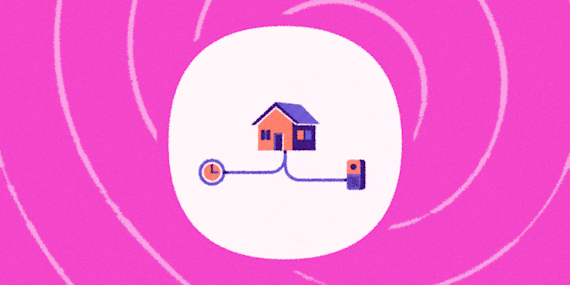
When a device connects to Google Wifi, IFTTT can turn on your WiZ lights or activate a scene. When a device disconnects, IFTTT can dim them or turn them off. Your lighting responds to who's home and online.
Get started todayGet started today

Automate Google Wifi and WiZ from your AI assistant

Ask Perplexity to create Google Wifi applets with IFTTT MCP and manage your network right from your AI assistant.

Set up IFTTT MCP

Create your own Google Wifi and WiZ workflow

Create custom workflows effortlessly by selecting triggers, queries, and actions. With IFTTT, it's simple: “If this” trigger happens, “then that” action follows. Streamline tasks and save time with automated workflows that work for you.

11 triggers, queries, and actions

Device Connects

Polling trigger
Polling Applets run after IFTTT reaches out to the trigger service and finds a new trigger event. These trigger checks occur every 5 minutes for Pro and Pro+ users, and every hour for Free users.
This Trigger fires every time a device connects to Google Wifi.

Device Disconnects

Polling trigger
Polling Applets run after IFTTT reaches out to the trigger service and finds a new trigger event. These trigger checks occur every 5 minutes for Pro and Pro+ users, and every hour for Free users.
This Trigger fires every time a device disconnects from Google Wifi.

History of device connects

Pro plus icon
Query
A query lets your Applet retrieve extra data that isn't included in the trigger, so that your automation can include more complete or useful information.
This query returns a list of when a device connects to Google Wifi.

History of device disconnects

Pro plus icon
Query
A query lets your Applet retrieve extra data that isn't included in the trigger, so that your automation can include more complete or useful information.
This query returns a list of when a device disconnects from Google Wifi.

Activate a scene

Action
An action is the task your Applet carries out after the trigger occurs. It defines what happens as the result of your automation and completes the workflow.
This action will apply the settings of the selected scene to your WiZ lights.

Dim / Brighten the light

Action
An action is the task your Applet carries out after the trigger occurs. It defines what happens as the result of your automation and completes the workflow.
This action will dim / brighten the selected light(s) by the step of your choice. Ideal for your smart remotes, connected buttons, widgets and much more!

Prioritize Device

Action
An action is the task your Applet carries out after the trigger occurs. It defines what happens as the result of your automation and completes the workflow.
This Action will prioritize a device for 1 hour on your Google Wifi network.

Pulse the light

Action
An action is the task your Applet carries out after the trigger occurs. It defines what happens as the result of your automation and completes the workflow.
This action will make the selected light(s) pulse gently once.

Toggle your lights on/off

Action
An action is the task your Applet carries out after the trigger occurs. It defines what happens as the result of your automation and completes the workflow.
This action will turn your lights on if they are currently off – and vice versa. An easy way to toggle between on and off statuses!

Turn off the light

Action
An action is the task your Applet carries out after the trigger occurs. It defines what happens as the result of your automation and completes the workflow.
This action will turn off the selected light(s).

Turn on / change light mode

Action
An action is the task your Applet carries out after the trigger occurs. It defines what happens as the result of your automation and completes the workflow.
This action will turn on the selected light(s). Optionally, a light mode or pre-defined color can be applied, as well as a level of dimming.

Activate a scene

Action
An action is the task your Applet carries out after the trigger occurs. It defines what happens as the result of your automation and completes the workflow.
This action will apply the settings of the selected scene to your WiZ lights.

Device Connects

Polling trigger
Polling Applets run after IFTTT reaches out to the trigger service and finds a new trigger event. These trigger checks occur every 5 minutes for Pro and Pro+ users, and every hour for Free users.
This Trigger fires every time a device connects to Google Wifi.

Device Disconnects

Polling trigger
Polling Applets run after IFTTT reaches out to the trigger service and finds a new trigger event. These trigger checks occur every 5 minutes for Pro and Pro+ users, and every hour for Free users.
This Trigger fires every time a device disconnects from Google Wifi.

Dim / Brighten the light

Action
An action is the task your Applet carries out after the trigger occurs. It defines what happens as the result of your automation and completes the workflow.
This action will dim / brighten the selected light(s) by the step of your choice. Ideal for your smart remotes, connected buttons, widgets and much more!

History of device connects

Pro plus icon
Query
A query lets your Applet retrieve extra data that isn't included in the trigger, so that your automation can include more complete or useful information.
This query returns a list of when a device connects to Google Wifi.

History of device disconnects

Pro plus icon
Query
A query lets your Applet retrieve extra data that isn't included in the trigger, so that your automation can include more complete or useful information.
This query returns a list of when a device disconnects from Google Wifi.

Prioritize Device

Action
An action is the task your Applet carries out after the trigger occurs. It defines what happens as the result of your automation and completes the workflow.
This Action will prioritize a device for 1 hour on your Google Wifi network.

Pulse the light

Action
An action is the task your Applet carries out after the trigger occurs. It defines what happens as the result of your automation and completes the workflow.
This action will make the selected light(s) pulse gently once.

Toggle your lights on/off

Action
An action is the task your Applet carries out after the trigger occurs. It defines what happens as the result of your automation and completes the workflow.
This action will turn your lights on if they are currently off – and vice versa. An easy way to toggle between on and off statuses!

Turn off the light

Action
An action is the task your Applet carries out after the trigger occurs. It defines what happens as the result of your automation and completes the workflow.
This action will turn off the selected light(s).

Turn on / change light mode

Action
An action is the task your Applet carries out after the trigger occurs. It defines what happens as the result of your automation and completes the workflow.
This action will turn on the selected light(s). Optionally, a light mode or pre-defined color can be applied, as well as a level of dimming.

Build an automation in seconds!

You can add delays, queries, and more actions in the next step!

GET STARTED

How to connect to a Google Wifi automation

Find an Applet using Google Wifi and WiZ

Find an automation to connect to, or create your own!

Connect IFTTT to your accounts

Securely connect the Applet services to your respective accounts.

Finalize and customize your Applet

Review trigger and action settings, and click connect. Simple as that!
Get started

Upgrade your automations with

Start your free trial

More on Google Wifi and WiZ

About Google Wifi

Google Wifi and IFTTT let you monitor which devices connect and disconnect from your network, and prioritize specific devices when you need them.
Connect Google Wifi

More integrations with Google Wifi

About WiZ

WiZ and IFTTT let you automate your smart lights to turn on, dim, change colors, or trigger scenes based on what happens elsewhere.
Connect WiZ

More integrations with WiZ

IFTTT helps all your apps and devices work better together

Get started for free